

Alerts
Use alerts to monitor total searches, total sales revenue, or total orders and receive notifications when a condition is met. Alerts evaluate yesterday’s data once nightly, after the data refresh finishes.
Open and review alerts
From Reports > Advanced Analytics, select the Manage Alerts bell beside Search Reports. A red exclamation badge indicates that one or more alerts have been breached.
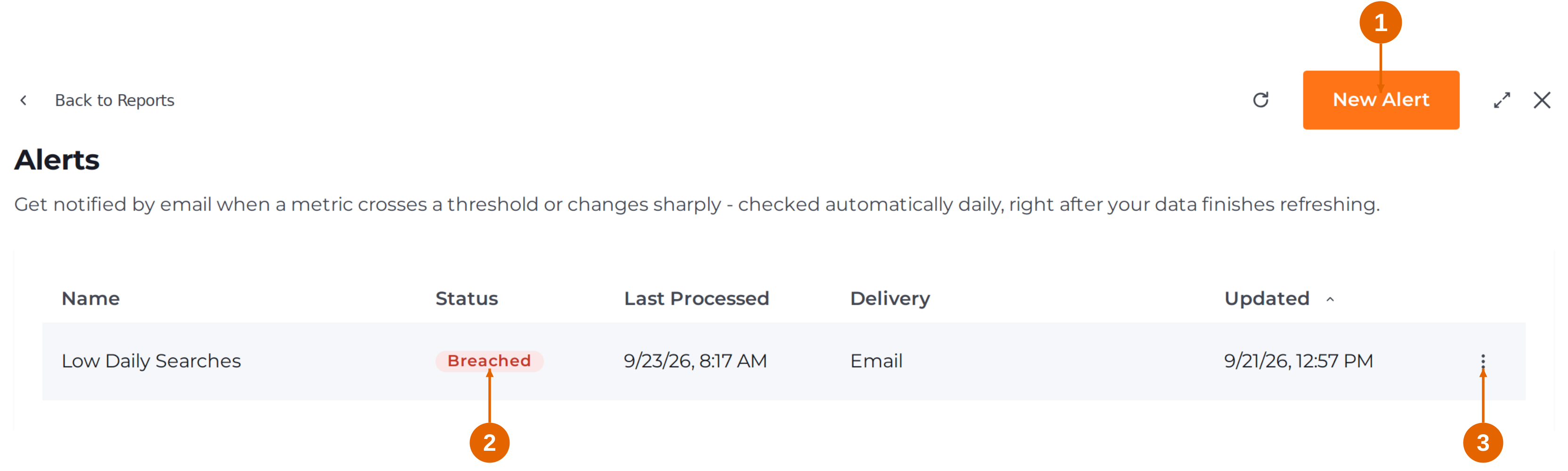
Figure 7. The Alerts screen shows saved rules and their latest processing status.
- New Alert. Select New Alert to define a metric, condition, and delivery settings. The following pages walk through a low-search-volume example.
- Status. Breached means the alert condition was met at its latest evaluation. Check Last Processed to see when that result was calculated.
- Actions. Select the three-dot control for the available actions on that alert. Process Now runs a manual check; it can also trigger the configured notifications.
Read the alert list
| Column | Meaning |
|---|---|
| Name | The label used to identify the alert. Hover over the name to see its metric and condition. |
| Status | The result of the alert’s latest evaluation, such as Breached. |
| Last Processed | When the alert was last evaluated. |
| Delivery | The delivery method. Hover over Email to see its recipients. |
| Updated | When the alert configuration was last updated. |
Use the Name or Updated column heading to sort the list. Select Reload to refresh the displayed list, or Back to Reports to return to Analytics.
When an alert is breached, review the related report for the evaluated day and check whether the change needs investigation. A fixed-value alert can remain breached on consecutive days while its condition continues to be met.
Create an alert
Select New Alert. Work through the fields from top to bottom. This example will flag days with 2,000 or fewer searches.
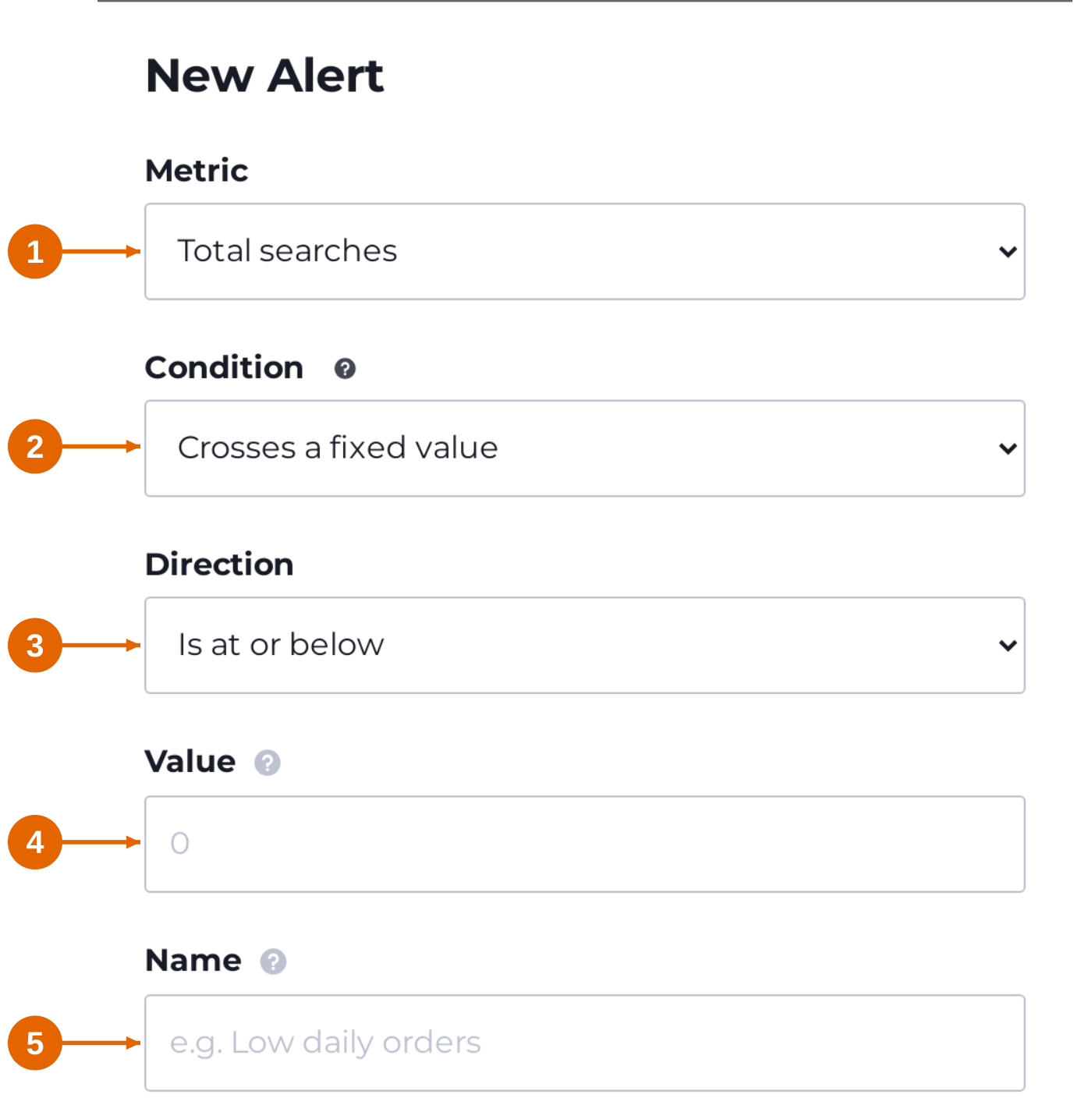
Figure 8. Upper part of New Alert, with example dropdown choices. Enter your own Value and Name.
- Metric. Choose Total searches, Total sales revenue, or Total orders. For this example, select Total searches.
- Condition. Choose how the metric should be evaluated. Select Crosses a fixed value for this example. See the next page for the other condition types.
- Direction. Choose the comparison direction. Select Is at or below to flag low volume; Is at or above checks for a high value.
- Value. Enter 2000. The unit depends on the condition: a metric value, a percentage, or a number of standard deviations.
- Name. Enter a recognizable label, such as Low Daily Searches. This name also appears in the alert email’s subject line.
Complete Notify and the delivery settings before selecting Save. The screenshot shows the form before the required values have been entered.
Choose an alert condition
The condition determines what yesterday’s value is compared with. Select the question-mark icon beside Condition to open the built-in explanations.
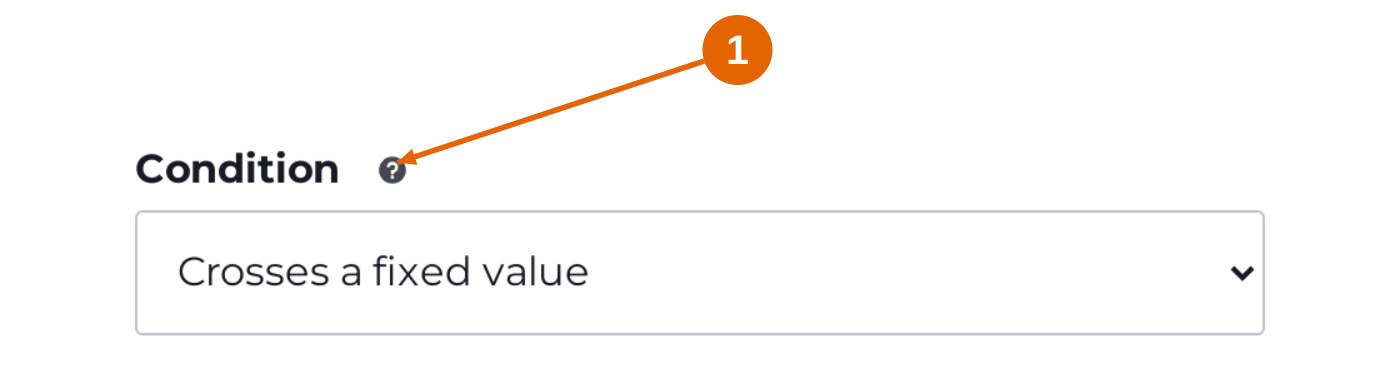
Figure 9. Select the help icon (1) to read About Conditions.
| Condition | Comparison | Value means |
|---|---|---|
| Crosses a fixed value | Yesterday’s metric against the number you enter. | An absolute metric value, such as 2000 searches. |
| Changes by a percentage | Yesterday’s metric against the day before yesterday. | A percentage change, such as 25 for 25%. |
| Deviates from its normal pattern for that day of the week | Yesterday’s metric against recent history for the same weekday. | A number of standard deviations, such as 2.5. |
Crosses a fixed value
Use this when you have a specific upper or lower limit. The comparison is inclusive: Is at or below 2000 includes exactly 2,000. The previous day’s value does not affect this check.
Example. Total searches + Is at or below + 2000. If yesterday had 1,164 searches, the condition is met. If it had 2,001, it is not met.
Changes by a percentage
Use this to detect a sharp increase or decrease from one day to the next. Enter the percentage amount in Value, then select the appropriate direction.
Example. Total orders + Decreases by at least + 25. A drop from 120 orders the day before to 80 yesterday is about 33%, so the condition is met.
Deviates from its normal weekday pattern
Use this when activity follows a weekly pattern. Yesterday is compared with recent occurrences of the same weekday, such as Monday against recent Mondays. A normal weekend peak or weekday dip can therefore be assessed in its usual context.
Example. Total sales revenue + Falls below its normal range by at least + 2.5. The alert checks whether yesterday’s revenue is at least 2.5 standard deviations below its same-weekday average.
This condition needs a few weeks of history for that weekday. A new account may not yet have enough data for it to fire. Larger deviation values require a more unusual change before the threshold is reached.
Set up delivery and save
Choose when to send email and who should receive it. You can also configure a webhook to pass the alert result to another service.
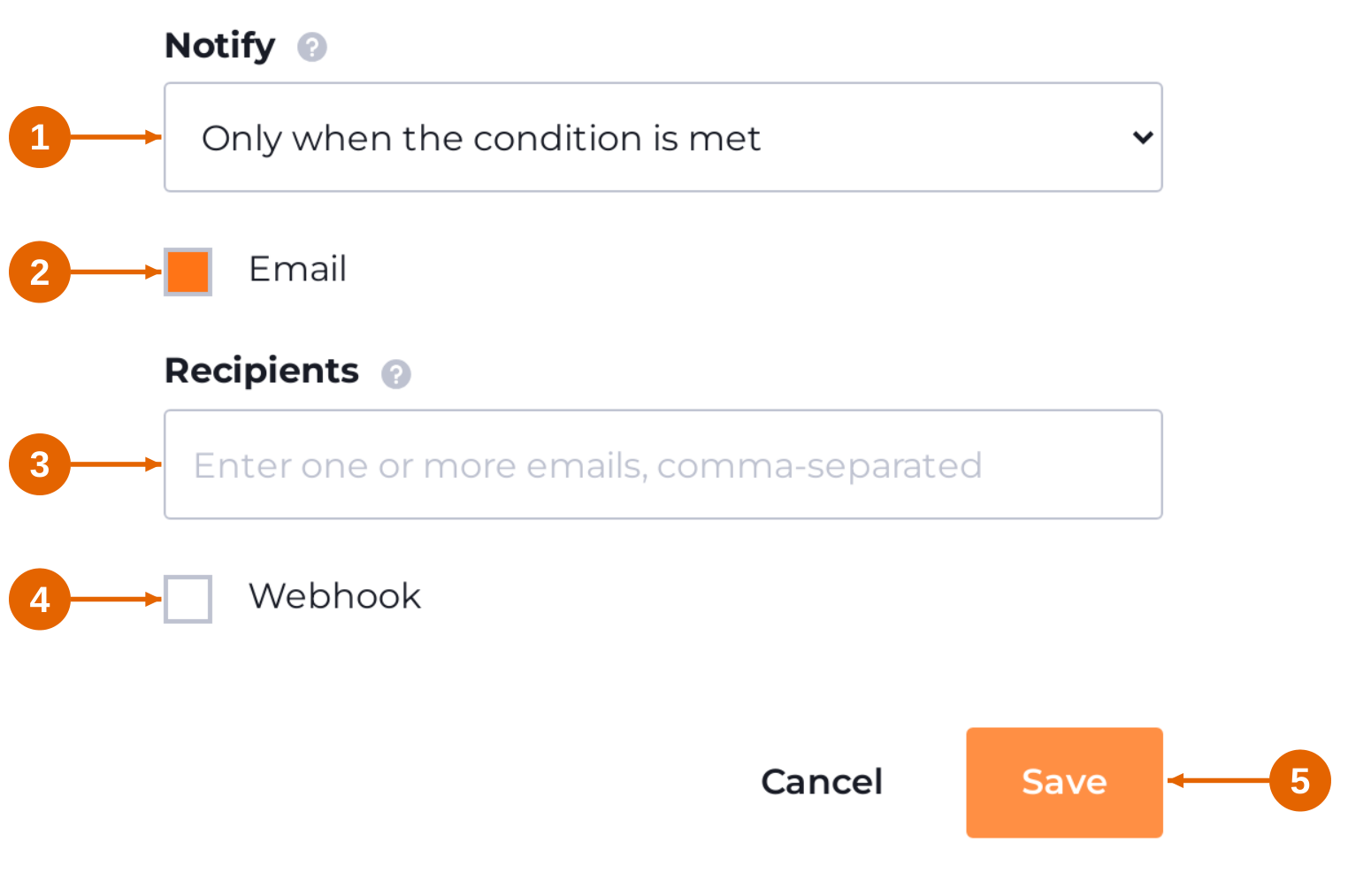
Figure 10. Lower part of New Alert. Complete the delivery details, then select Save (5).
- Notify. Select Only when the condition is met to email recipients when the alert is breached. Select Every time it’s checked, with the current status to receive an email after each evaluation, even when the condition is not met.
- Email. Enable Email when you want the alert delivered by email.
- Recipients. Enter one or more email addresses, separated by commas. Check the recipient list before saving.
- Webhook. Enable Webhook if you want to send results to another service, then provide its HTTPS endpoint. A Slack Incoming Webhook URL can receive the alert’s plain-text summary. Private, internal, and link-local addresses are blocked.
- Save. Review the metric, condition, direction, value, name, and delivery settings, then select Save. Use Cancel to leave without creating the alert.
Understand webhook delivery
A webhook sends a POST request with a JSON body every time the alert is checked, including Process Now. The Notify selection controls email behavior; it does not limit the webhook to breached results.
The payload includes a plain-language summary, whether the condition is met, current and prior metric values, and identifiers for the alert. Configure the receiving service to use the breached field if it should act only when the condition is met.
Review the saved alert
Return to Alerts and check the rule’s Name, Delivery, and Last Processed columns. After its next evaluation, review the Status and confirm that the intended recipients or receiving service got the expected notification
Updated about 20 hours ago