

Assistants
Overview
Assistants are agentic solutions developed by HawkSearch to support both merchandisers using HawkSearch and visitors to HawkSearch-powered websites. These assistants leverage the power of LLMs to understand user requests, MCP servers that provide access to multiple systems through APIs, and carefully designed prompts that help guide and govern the assistants' behavior.
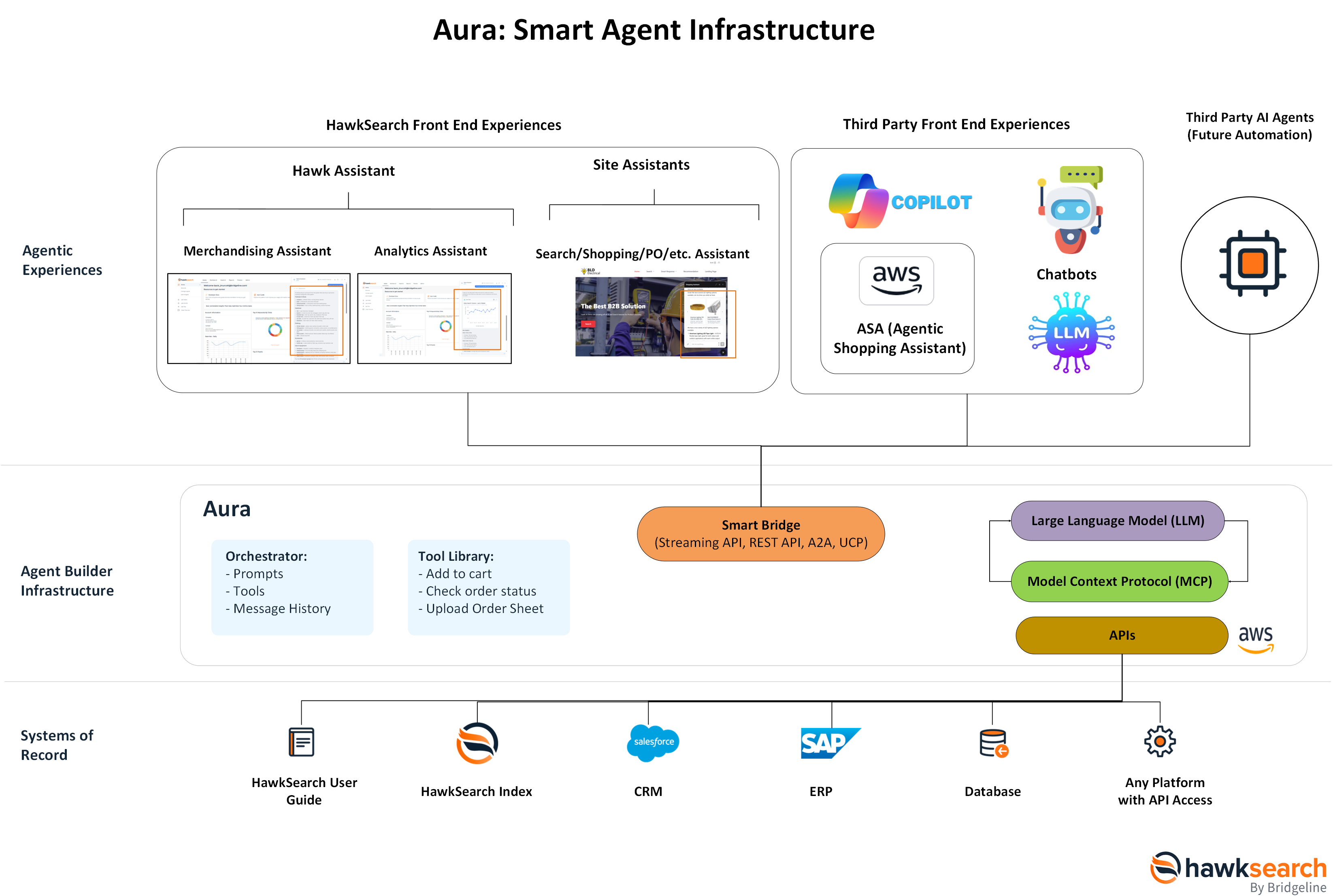
The diagram below describes the components of Assistants and the underlying architecture in HawkSearch called Aura which powers the Assistants.
Hawk Assistant
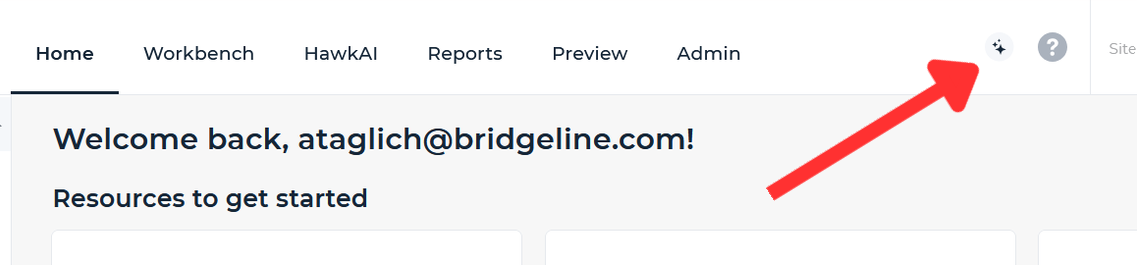
The Hawk Assistant supports users who log into HawkSearch. There are two types of Hawk Assistants: Analytics and Merchandising. With both Hawk Assistants enabled, you can ask questions that will combine results from your merchandising rules and their outcomes in analytics results. The Hawk Assistant is available on the top navigation next to the help option.
Site Assistants
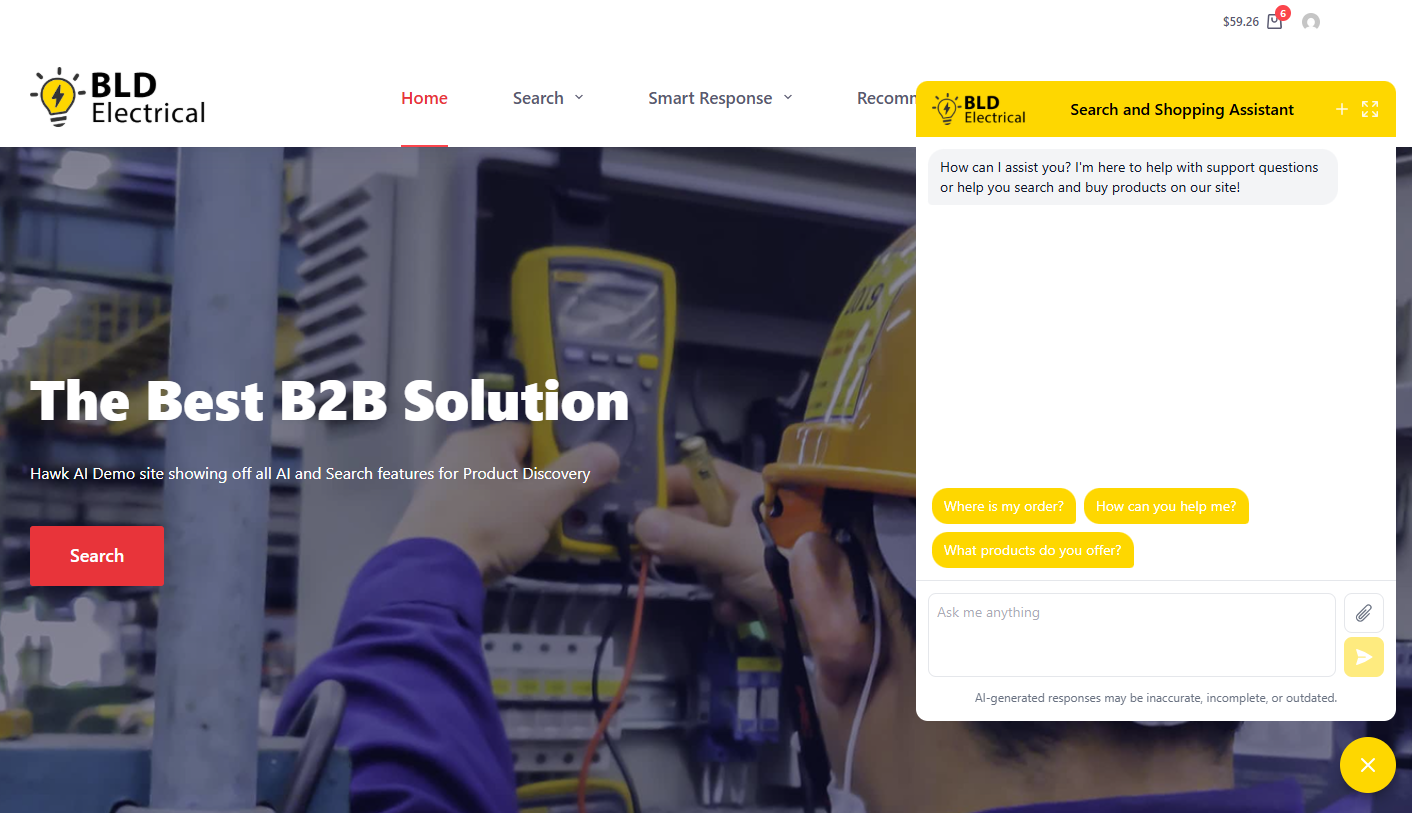
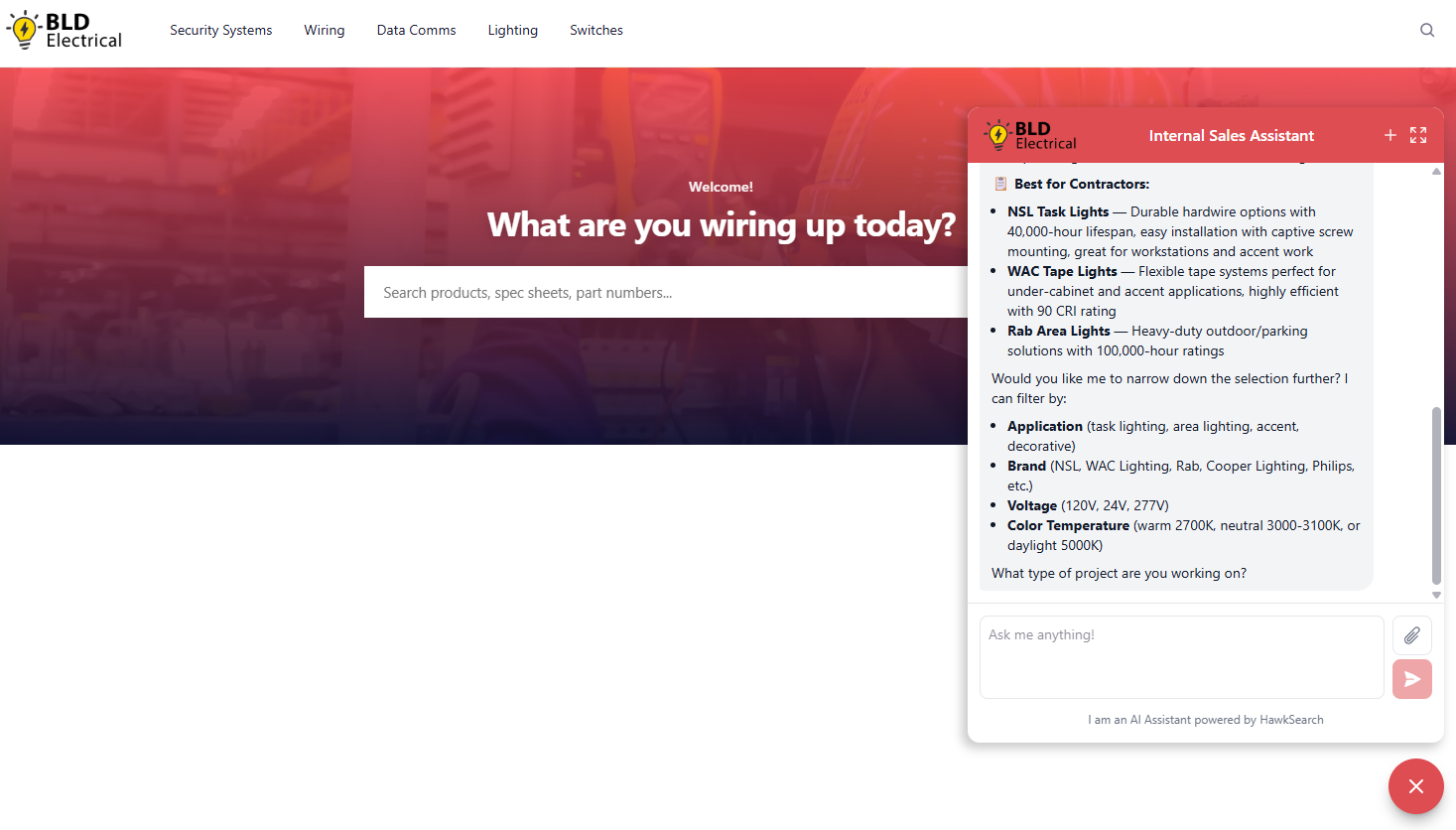
The second category of Assistants consists of customer-facing website assistants, such as search assistants and shopping assistants. Similar assistants can also be deployed internally to support employees through portals, such as a sales assistant. These assistants are typically customized to reflect your organization's branding and personality. The different types of Site Assistants depend on the tools and prompts described below.
 | |
|---|---|
 |
Hawk Assistant
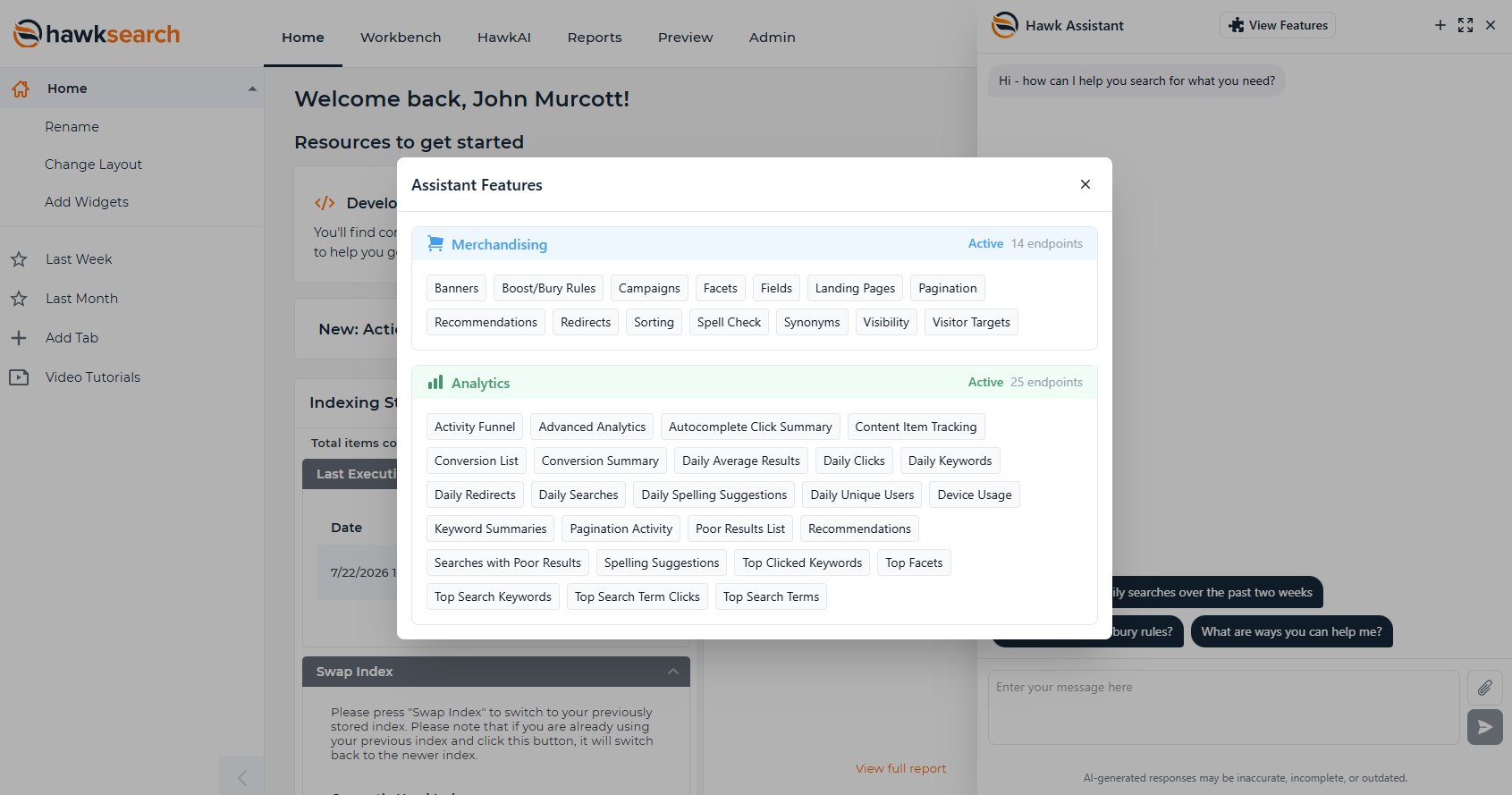
The Hawk Assistant acts as an agent that helps merchandisers complete common merchandising tasks within HawkSearch. For example, the assistant can retrieve and summarize boost and bury rules, helping users quickly access the information they need. To view all available capabilities, click the View Features button located at the top of the Assistant interface.
MCP
Model Context Protocol (MCP) is a common term in AI applications that refers to the framework used to connect agentic solutions, such as the Hawk Assistant, to external systems and data sources through APIs. While users do not need to interact directly with MCP servers, they enable the assistant to access the capabilities required to perform its tasks. In practical terms, the features listed above can be thought of as the tools and API integrations that the Hawk Assistant can access through the MCP server.
Merchandising Assistant
Installation
To enable a Hawk Assistant, contact your HawkSearch Customer Success Director (CSD). Your CSD can help determine the appropriate access tier based on your organization's needs and assist with the setup process. In addition to this documentation, training resources are available to help users understand and maximize the value of the Hawk Assistant's features and capabilities.
Overview
The Merchandising Assistant is the primary Hawk Assistant designed to support common merchandising activities within HawkSearch. It understands natural language requests and uses its knowledge of the HawkSearch platform, user documentation, and available system capabilities to assist users in completing merchandising tasks more efficiently. Whether you need guidance on a feature, access to merchandising information, or help performing a task, the Merchandising Assistant can provide relevant assistance based on the resources and tools available to it.
Specific Features
The following is a list of common settings configured in HawkSearch by merchandisers. For each of these features the Merchandising Assistant can help you with:
-
Description of the feature and what it does
-
Provide a list of items in any of these features
-
Provide an analysis of those items
-
Provide insights and suggests on what to change in those items
-
Create and/or update any items within these features
-
Undo any updates previously made by the Assistant
| Feature | Notes |
|---|---|
| Banners | Helps manage promotional banner content and its association with campaigns. You can: - View which campaigns a banner is associated with - Link existing banners to one or more campaigns - Review banner-to-campaign relationships before making changes - Manage banner associations without modifying the banner image Note that image uploads are not supported within the banner configuration. |
| Boost and Bury Rules | Helps prioritize products by moving selected items higher or lower in search results. You can: - Create global or conditional rules - Choose the affected products - Adjust their ranking and schedule when rules apply - Review the impact of rules before saving |
| Campaigns | Helps manage campaign content. You can: - Add or remove a banner association from a campaign - Change which banner is linked to a campaign (e.g., swap to a different existing banner) - Update campaign rules, sort order, dates, or other settings` |
| Facets | Helps shoppers narrow search results using filters such as brand, price, size, or color. You can: - Create or update filters - Choose the product information and display style used - Configure ranges, swatches, and filter values - Control the order and visibility of filters - Update the conditions that determine when a facet appears |
| Fields | Determines how product information such as name, brand, price, and SKU is used by HawkSearch. You can: - Create or update product fields - Define the type of information each field contains - Make fields searchable, filterable, sortable, or visible in results - Adjust how strongly a field influences search ranking |
| Landing Pages | Creates curated landing page experiences for shoppers. You can: - Create Product Listing or Content Landing Pages - Update page names, URLs, dates, and SEO information - Choose which products or content appear - Control sorting and available filters |
| Pagination | Controls how many search results shoppers see at once and how they navigate between pages. You can: - Create different pagination experiences - Set the number of page links displayed - Choose available results-per-page options - Control when each pagination option appears |
| Recommendations | Displays personalized, related, or featured products based on shopper behavior and page context. You can: - Create and manage recommendation widgets and layouts - Update titles, dates, item counts, and carousel settings - Choose and reorder recommendation strategies - Configure filters, triggers, or A/B testing |
| Redirects | Sends shoppers directly to a relevant page when they enter a specific search or meet defined conditions. You can: - Create or update redirect rules - Choose the destination URL and active dates - Define which searches trigger the redirect - Change the order in which redirects are applied |
| Sorting | Reorder results by price, rating, popularity, or another product attribute. You can: - Create sorting sets and options - Select the default sorting method - Choose which product information controls the order - Control when different sorting options appear |
| Spell Check | Helps shoppers find relevant results when they misspell a search term. You can: - Add common misspellings and their corrections - Update or remove existing spelling overrides - Customize Did You Mean and Auto-Correct suggestions |
| Synonyms | Connects words with the same or similar meanings so shoppers can find products regardless of the terminology they use. You can: - Create one-way or interchangeable synonym groups - Add or remove terms from a group - Update, export, or manage synonyms in bulk - An index rebuild is required before changes appear. |
| Visibility | Hides products that are unavailable, out of stock, irrelevant, or unsuitable for certain shoppers. You can: - Create global or conditional visibility rules - Choose which products should be hidden - Define when and for whom the rule applies - Preview the affected products before saving |
| Visitor Targets | Groups shoppers by shared characteristics so their search and merchandising experiences can be personalized. You can: - Create and manage audience groups - Target visitors by location, traffic source, time of day, browser, or customer type - Define which visitors qualify for each group - Use groups in campaigns, landing pages, and merchandising rules |
Example requests
-
List and categorize all of my synonyms
-
Do I have any duplicate synonyms?
-
Show me which products are currently being buried.
-
Why is this product appearing at the top of the results?
Merchandising Assistant Overview Video
Analytics Assistant
The Analytics Assistant helps HawkSearch users explore and understand their analytics data through natural-language questions. Instead of navigating individual reports or building queries manually, users can ask questions about search performance, product engagement, recommendations, revenue, and other HawkSearch activity.
The Analytics Assistant is read-only. It analyzes and returns information from HawkSearch analytics data but does not change search or merchandising configurations.
How it works
The Analytics Assistant uses HawkSearch Analytics raw data endpoint to retrieve the information needed for each question. Instead of relying on a fixed set of reporting endpoints, it can select the relevant metrics, dimensions, filters, and date ranges based on what the user asks. It then converts the question into the appropriate analytics request and returns the results in a clear, conversational format.
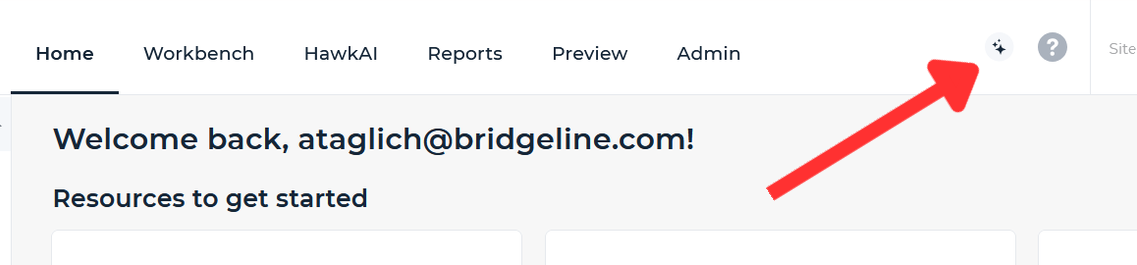
The Analytics Assistant can be accessed by clicking on the Sparkle icon on the top left of the page:
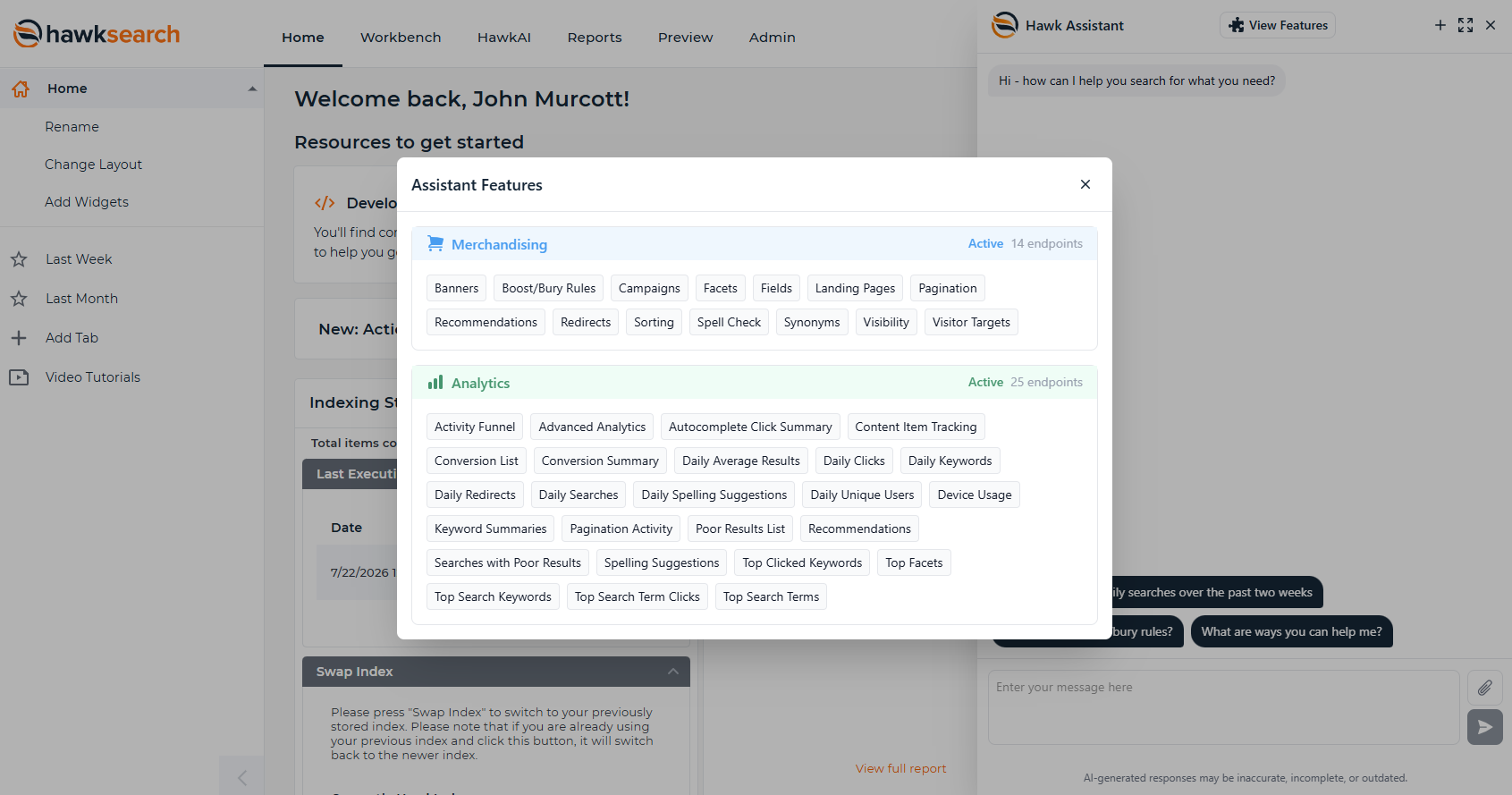
The list of analytics repositories that are available to the assistant can be viewed by clicking on the “View Features” button:
The Analytics Assistant will provide text and graphical responses based on your requests.
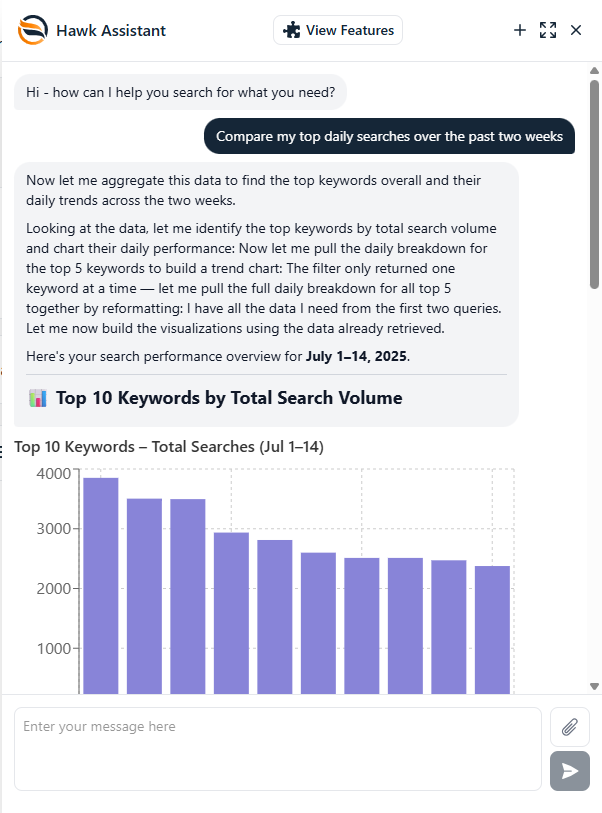
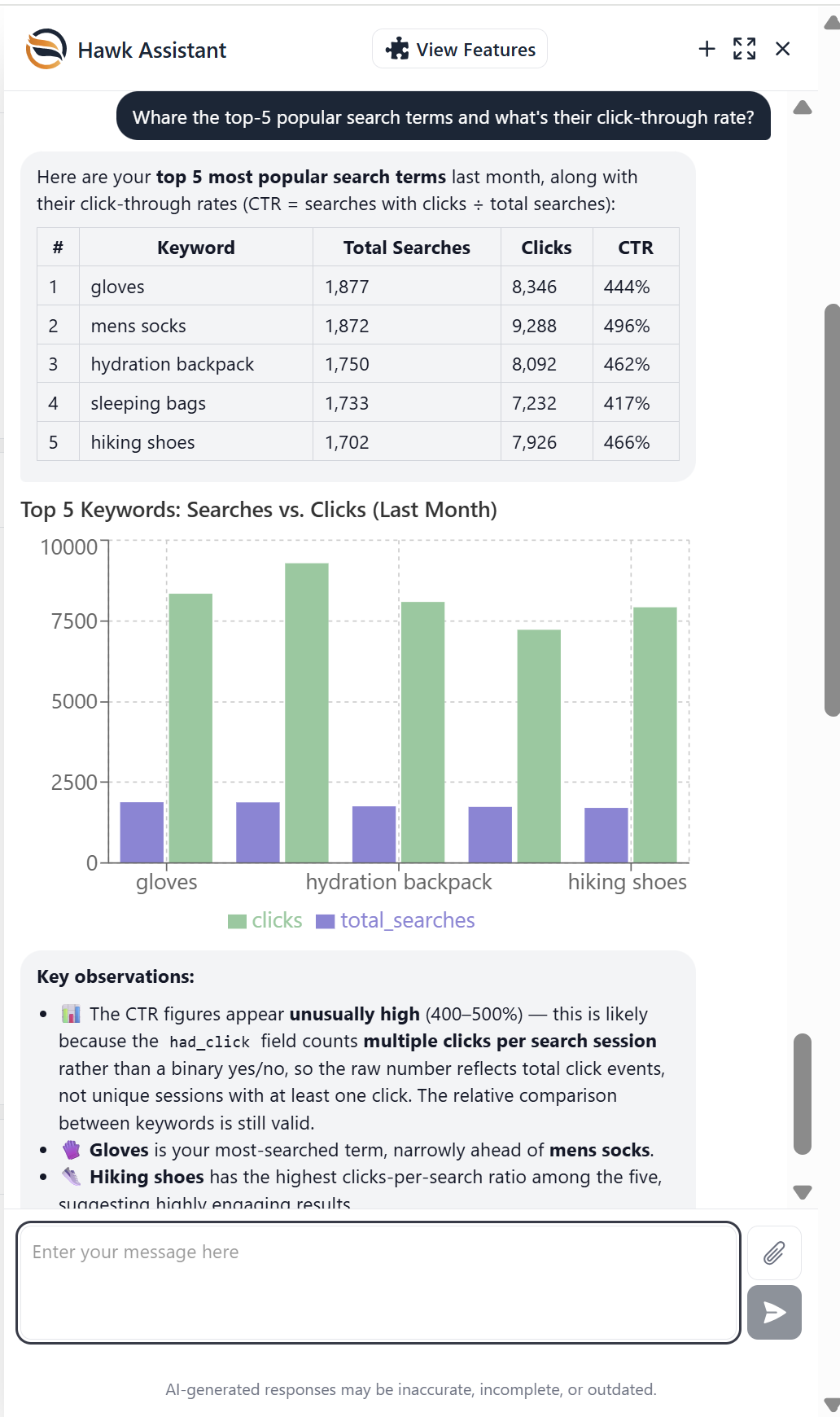
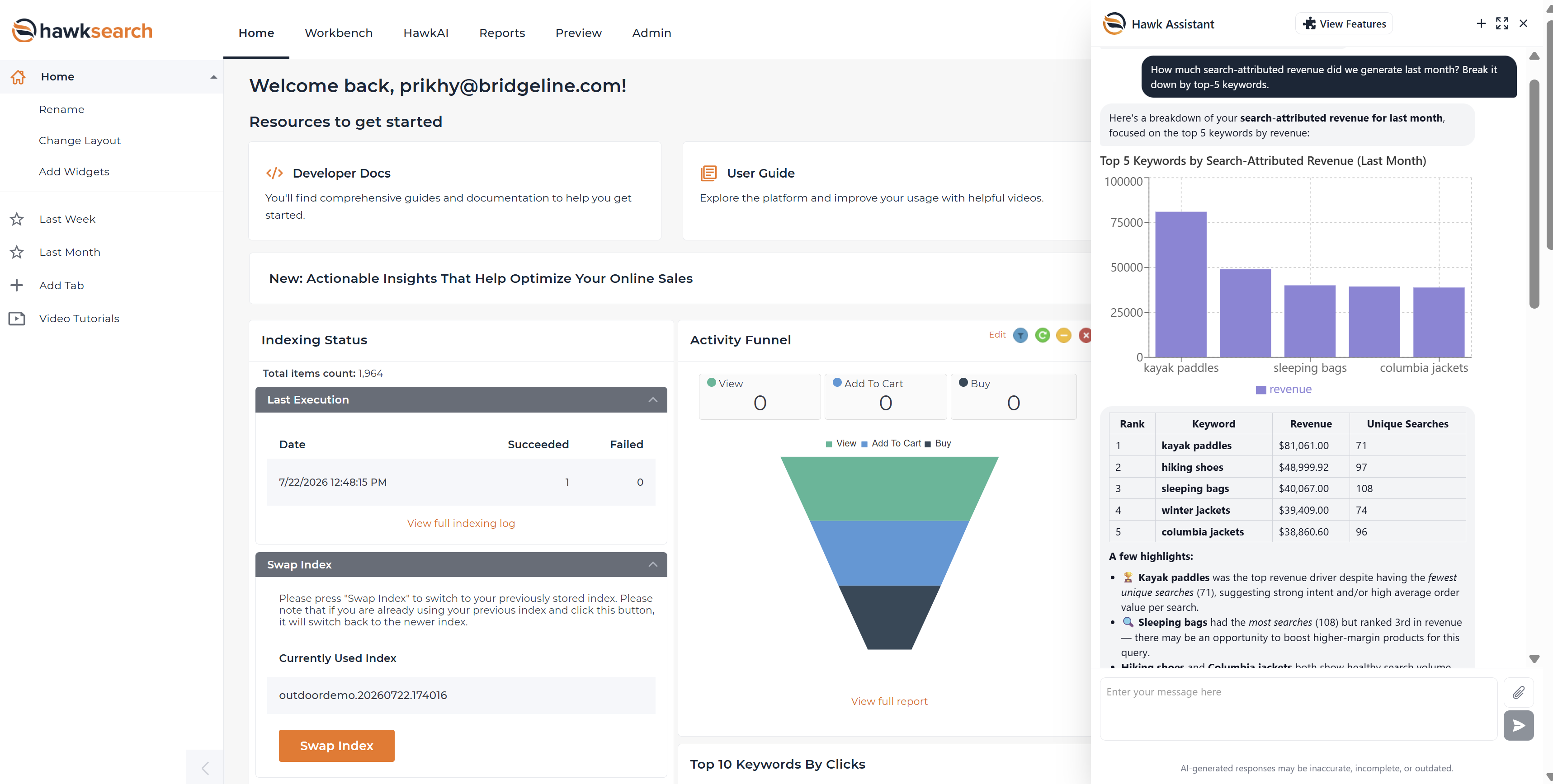
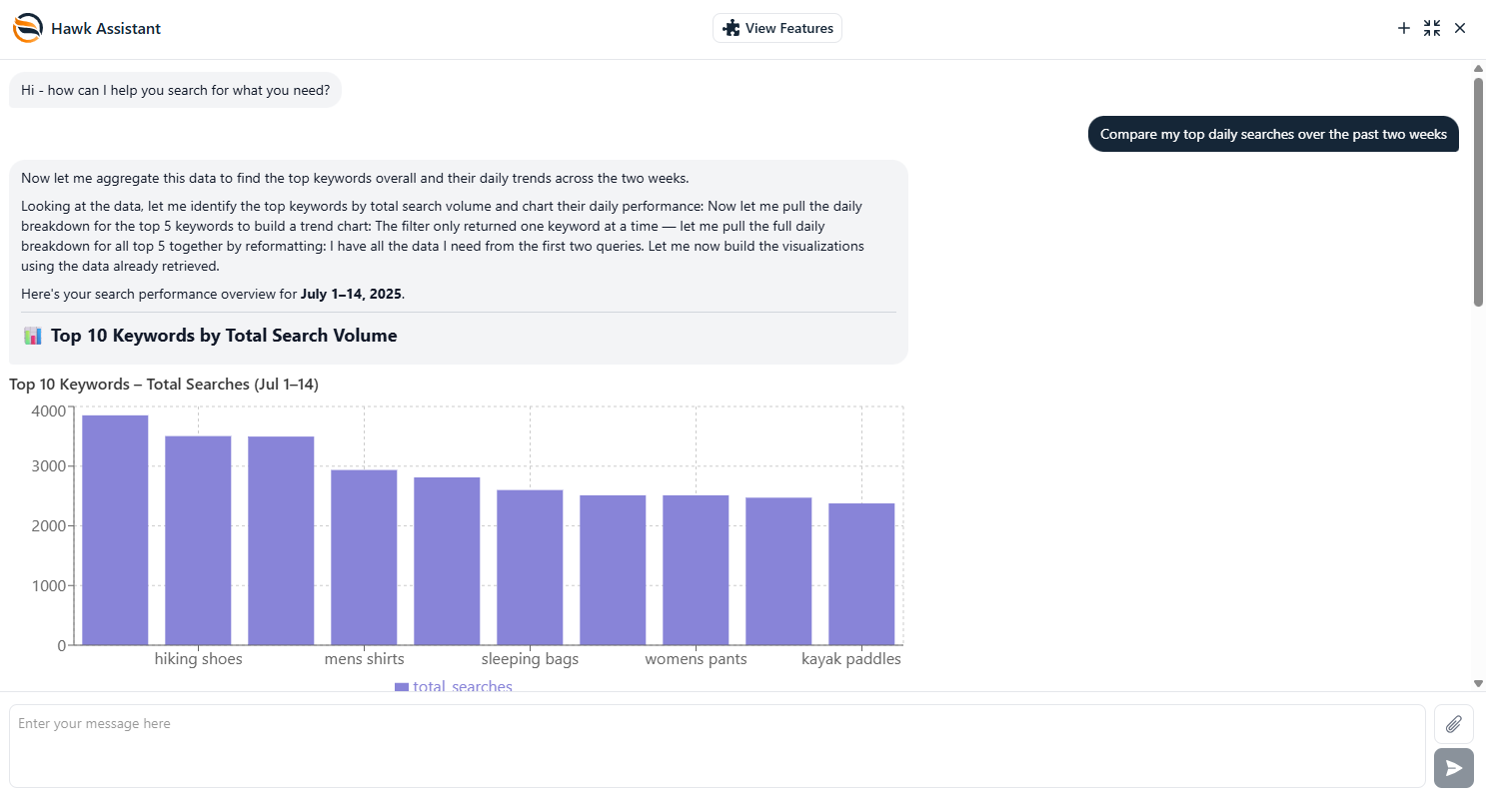
The UX can also be expanded to full size:
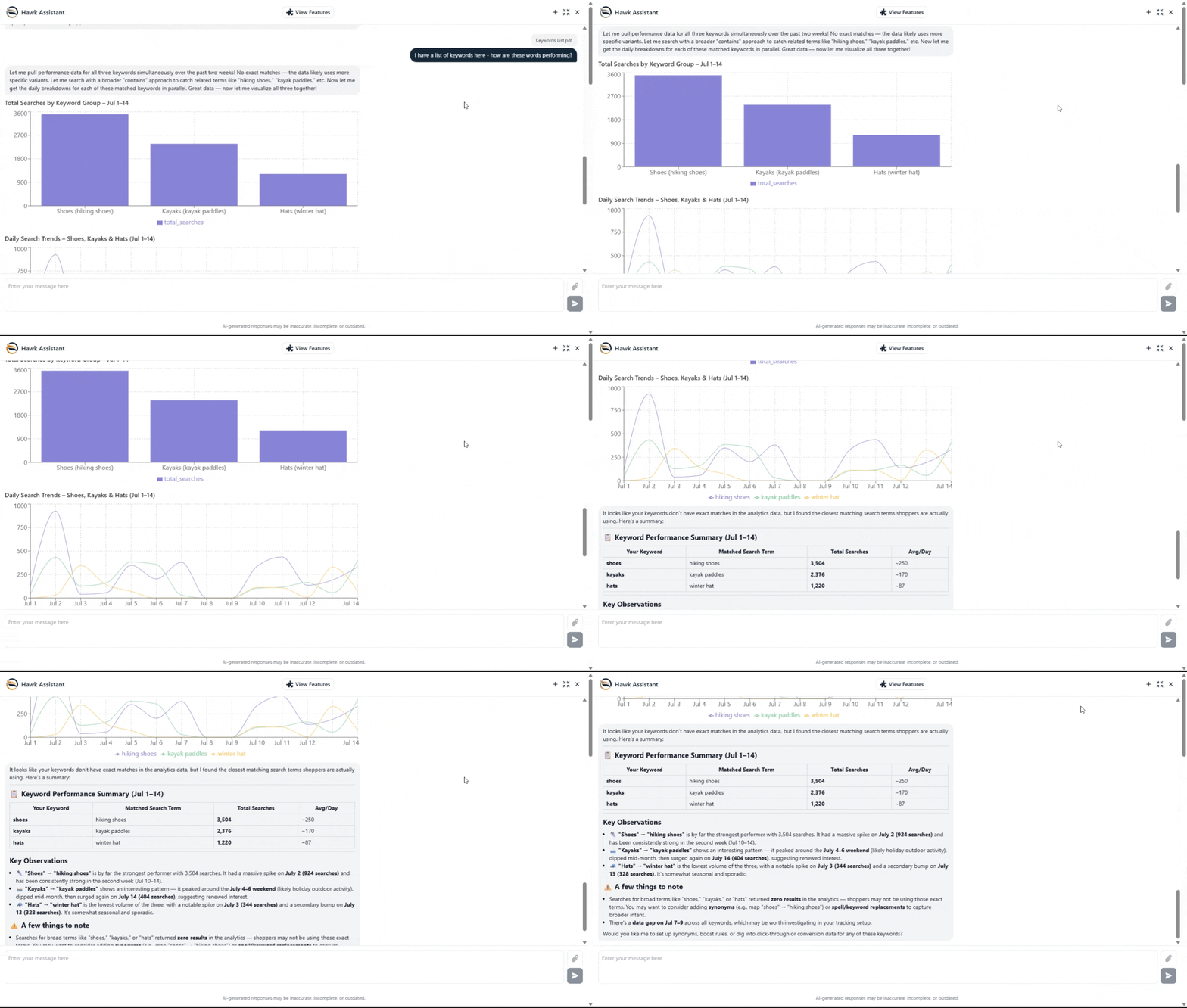
The Assistant includes a file upload option located next to the submit button in the lower-right corner of the chat interface. This feature allows you to provide additional context by uploading supporting files, such as PDF or CSV documents containing keywords, product data, or other business information. Once a file is uploaded, you can ask the Assistant to analyze the data, compare it with your HawkSearch analytics, identify trends, or provide performance metrics and insights related to the uploaded content.
Data Access
| Data | Description |
|---|---|
| Activity Funnel | Visualizes how shoppers progress through key stages of the search experience, including searches, clicks, add-to-cart events, orders, and revenue-related actions. Can answer questions like“ Where are customers dropping out of the search-to-purchase funnel?”,“What percentage of searches result in a purchase?”, and“How does my conversion funnel compare across devices or time periods?” |
| Daily Keywords | Has information on what keywords are being searched on each day and can answer questions like “What were my top searches last week?” |
| Top Facets | Has overall usage data for each facet and drill down information for which facet values are clicked the most often. It can answer questions like “What is my most and least used facets?” |
| Autocomplete Click Summary | Shows which autocomplete suggestions were clicked, including the keyword being typed, the selected suggestion, suggestion type, and number of clicks. Can answer “Which autocomplete suggestions are clicked most often?” or “What do customers select when they search for ‘kwikset’?” |
| Top Search Term Clicks | Shows which search terms generate the most clicks on search results. Can answer “Which search terms receive the most clicks?” |
| Top Search Terms | Shows the search terms with the highest search volume. Can answer “What are my most popular search terms?” or “What are customers searching for most?” |
| Keyword Summaries | Provides keyword-level search performance, including search volume, clicks, average click position, and average number of results returned. Can answer “Which high-volume searches are getting few clicks?” or “Which searches return very few results?” |
| Top Clicked Keywords | Shows keywords ranked by the number of result clicks they generate. Can answer “Which keywords lead to the most result clicks?” |
| Top Search Keywords | Shows keywords ranked by search volume. Can answer “What keywords are searched most often?” |
| Daily Searches | Shows search activity by day, including search volume and related search metrics. Can answer “How many searches did we have each day?” or “How has search volume changed over time?” |
| Daily Clicks | Shows search-result click activity by day. Can answer “How many search-result clicks did we receive each day?” |
| Daily Unique Users | Shows daily unique visitors and visits associated with search activity, along with average results, converting visitors, orders, and revenue. Can answer “How many unique users searched each day?” or “How many of those users converted?” |
| Daily Average Results | Shows the average number of results returned for searches by day. Can answer “How many results does a typical search return?” or “Has the average number of search results changed?” |
| Spelling Suggestions | Shows searches for which spelling suggestions were generated, including the original keyword and suggested correction. Can answer “What search terms are frequently misspelled?” |
| Pagination Activity | Shows how customers navigate search results, including the result page viewed and pagination options selected. Can answer “How often do customers go beyond the first page of results?” or “What page size do customers use most often?” |
| Device Usage | Shows search activity by browser, operating system, and device category, along with search and engagement metrics. Can answer “Are customers searching more on mobile or desktop?” or “Which devices are used most for search?” |
| Conversion Summary | Provides daily search-attributed conversion metrics, including searches, visits, clicks, carts, orders, and revenue. Can answer “How much revenue is attributed to search?” or “How many searches resulted in an order?” |
| Conversion List | Provides conversion details at the keyword and/or product level, allowing orders and revenue to be associated with search activity. Can answer “Which searches are driving revenue?” or “Which products are being purchased after search?” |
| Searches with Poor Results | Identifies keywords that return 50 or fewer results, along with their search volume and result count. Can answer “Which popular searches return few results?” or “What searches may indicate gaps in the catalog?” |
| Content Item Tracking | Tracks interactions with content items, including impressions, clicks, orders, and revenue where applicable. Can answer “Which content items are receiving the most clicks?” or “Which content items are associated with conversions?” |
| Recommendations | Shows recommendation performance through impressions, clicks, add-to-carts, orders, and revenue. Can answer “How are recommendations performing?” or “Which recommended products generate the most clicks or revenue?” |
| Daily Redirects | Shows search activity involving redirects by day. Can answer “How often are searches being redirected?” or “Which searches trigger redirects most often?” |
| Daily Spelling Suggestions | Shows spelling-suggestion activity by day, including the searches and suggested corrections. Can answer “How often are spelling suggestions being used?” or “Which misspellings occur most frequently?” |
| Landing Pages | Shows search, visit, order, and revenue activity associated with landing pages. Can answer “Which landing pages generate the most search activity?” or “Which landing pages have the highest conversion rate?” |
| Campaigns | Shows campaign activity and performance, including impressions, clicks, orders, and revenue. Can answer “Which campaigns are getting the most clicks?” or “Which campaigns are generating orders and revenue?” |
| Click Positions | Shows where result clicks occur within the search results, grouped into position ranges such as 1–6, 7–12, 13–24, and 25+. Can answer “Where on the search results page do customers typically click?” or “What percentage of clicks happen in the top results?” |
Key Features
| Feature | Details |
|---|---|
| Conversational Analytics | Ask analytics questions using natural language instead of manually navigating reports or constructing API queries. |
| Ad-Hoc Data Analysis | Dynamically queries HawkSearch analytics data using the dimensions, measures, filters, and date ranges required for the question. |
| Search Performance Analysis | Analyze searches, search engagement, click behavior, product discovery, and search effectiveness. |
| Revenue & Conversion Analysis | Ask questions about search-attributed revenue, orders, conversions, products, and keywords. |
| Recommendation Analysis | Review recommendation impressions, clicks, engagement, and attributed commercial performance where applicable. |
| Trend & Comparison Analysis | Analyze performance across time periods and identify increases, declines, or changes in key metrics. |
| Breakdowns & Filtering | Break results down by available dimensions such as keyword, product, date, widget, or other analytics fields supported by the data. |
| Follow-up Questions | Continue the conversation to refine or drill further into an initial result without starting the analysis again. |
Example Questions/Prompts
-
How much search-attributed revenue did we generate last month?
-
What were our top search terms by revenue?
-
Which keywords had high search volume but low engagement?
-
What products received the most clicks from search?
-
How has search performance changed compared with the previous month?
-
Which recommendation widgets generated the most revenue?
-
Show me searches returning few or no results.
-
Which products or keywords are underperforming despite high traffic?
Analytics Assitant Overview Video
Combined Analytics & Merchadinsing Assistant
Site Assistants
Overview
Site Assistants are agentic solutions that reside on your website, whether it’s your ecommerce site or an internal portal behind a firewall. It typically appears on the bottom left or right of your page and can be configured to start in an open or closed position.
Examples
The capabilities of the assistant always remain the same:
-
The Assistant understands the request
-
The Assistant looks up the answer or performs the task
-
The Assistant confirms what it did and asks for further instructions
There are many use cases for Site Assistants. These use cases can be supported through the prompting, tools and configuring settings within the Site Assistant.
-
Search Assistant – A conversational search experience where the assistant performs searches and asks follow-up questions.
-
Shopping Assistant – Offers Search Assistant capabilities as well as the ability to add to cart or check previous orders
-
Internal Sales Agent – Similar to the Search and Shopping Assistant but geared towards internal users providing customer support or inside sales functions.
Components
The Site Assistant is designed to be customized to the specific use cases and needs of your business.
UX and Configuration
The configuration options for the Assistant are available through the Hawk AI navigation, then selecting “Assistants” in the left-hand navigation. The screen looks like this:
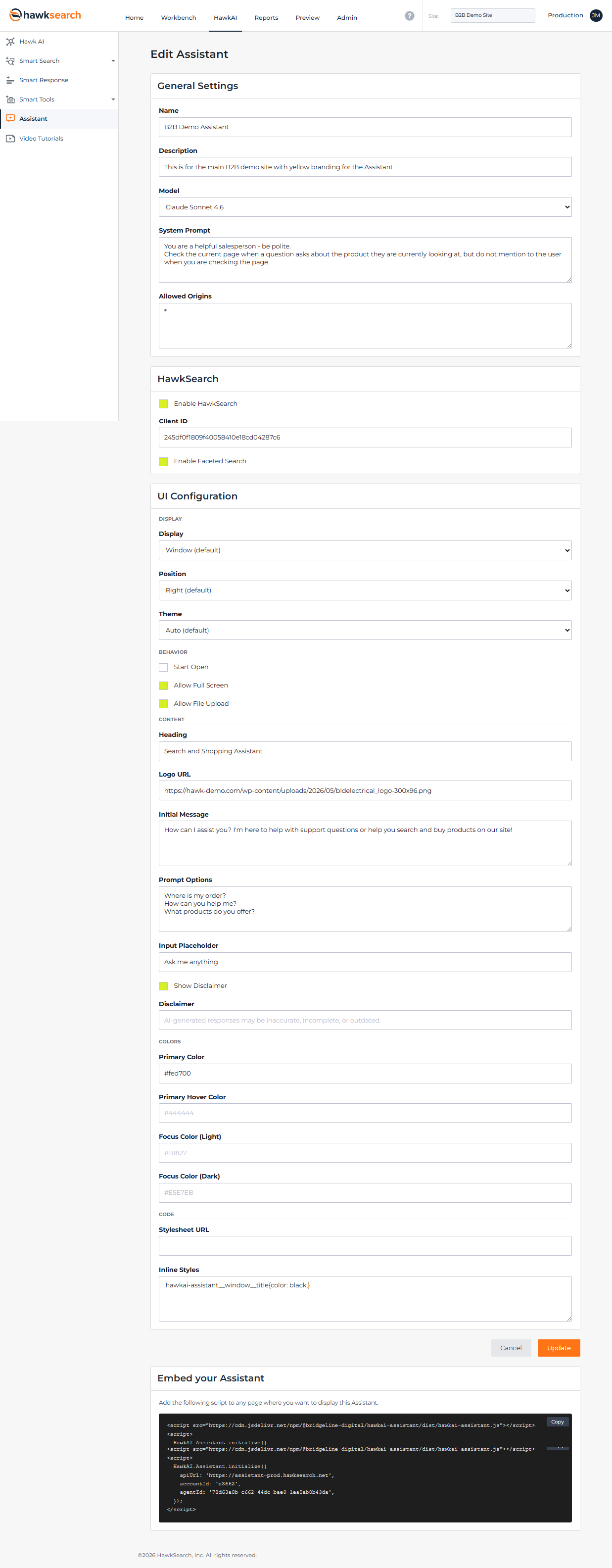
The details for setting up the assistant are outlined in the developer portal: https://developerdocs.hawksearch.com/docs/configuring-your-assistant
Prompt
The behavior of the Assistant is dependent on the settings configured within your prompt. There is documentation on prompt best practices from the Smart Response section of the User Guide: https://userguide.hawksearch.com/docs/smart-response#prompt-examples
MCP
Model Context Protocol (MCP) is a common term in AI applications that refers to the framework used to connect agentic solutions, such as the Site Assistant, to external systems and data sources through APIs. While users do not need to interact directly with MCP servers, they enable the assistant to access the capabilities required to perform its tasks. In practical terms, it’s important to understand that for the Search API to access your HawkSearch index, it must be configured and ready to go in the MCP server within the Site Assistant.
Tools
If you need your Assistant to integrate with additional systems or perform custom business processes, new functionality can be added through a Tool. Tools provide the Assistant with access to external APIs and enable it to perform specialized actions beyond its standard capabilities. These integrations are typically developed and configured by a developer based on your organization's requirements. For implementation guidance and examples of custom tools, refer to the HawkSearch Developer Portal: View Tool Development Documentation.(https://developerdocs.hawksearch.com/docs/embedding-your-assistant#tools)
Features
Many of the capabilities available within your Site Assistant are enabled through the custom Tools described above, which allow the assistant to connect to external systems and perform specialized actions. In addition to these configurable extensions, the Site Assistant includes a set of built-in features that are available by default and can be used without any additional development or integration work.
Conversational UX
Many users interact with the Site Assistant in the same way they would use a chatbot, messaging application, or virtual assistant. Users simply enter a message, and the Assistant analyzes the request and generates an appropriate response. While the conversational experience is designed to feel familiar and intuitive, the Assistant's appearance, branding, and user experience can be fully customized to align with your organization's requirements. In addition, the prompts that guide the Assistant's behavior can be tailored to define how it responds, what information it provides, and how conversations are conducted.
File Upload
The file upload feature is very powerful and allow sites users to upload orders, lists or pictures which are then analyzed and acted upon by the Assistant. The scanning option of the Assistant works on the following file types:
-
Images (.png, .jpg, .gif, .webp)
-
Files (.pdf, .csv, .txt)
This feature can be turned on or off in the configuration screen highlighted above.
Updated 11 days ago