

Visual Facets
Overview
It's often helpful though to provide a facet navigation before getting to all of the products, especially if there are many products or facet options. It's also helpful to provide an image along with the facets for visibility. This visual facet approach can reside within the facet structure on the left:
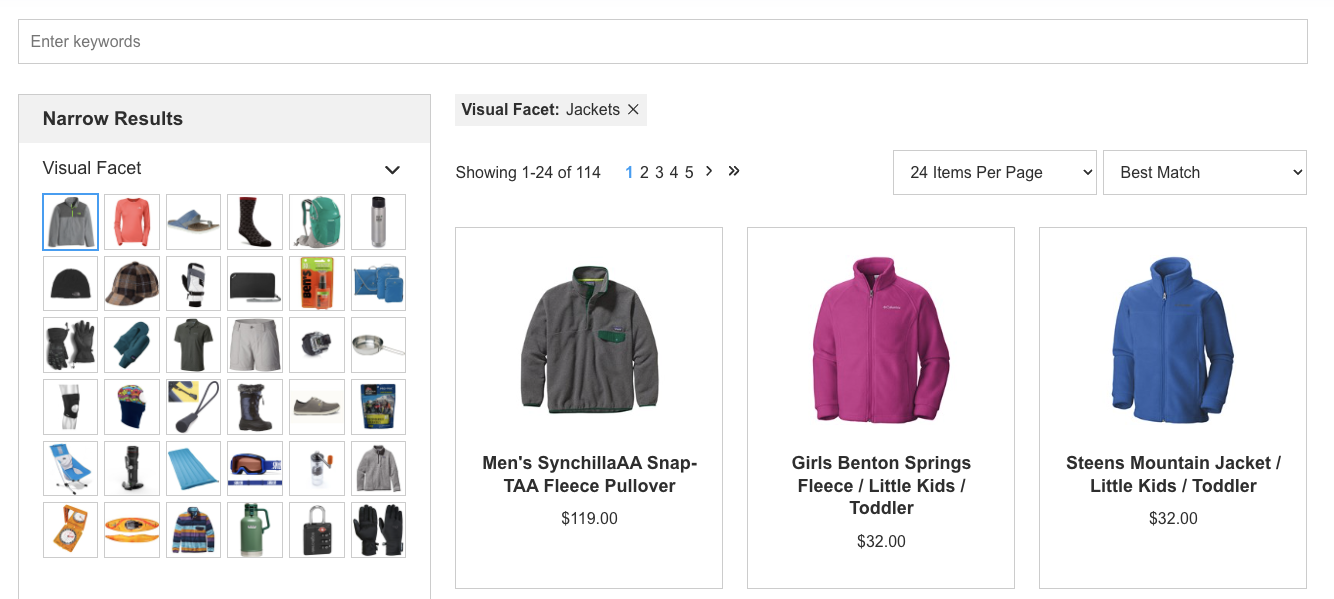
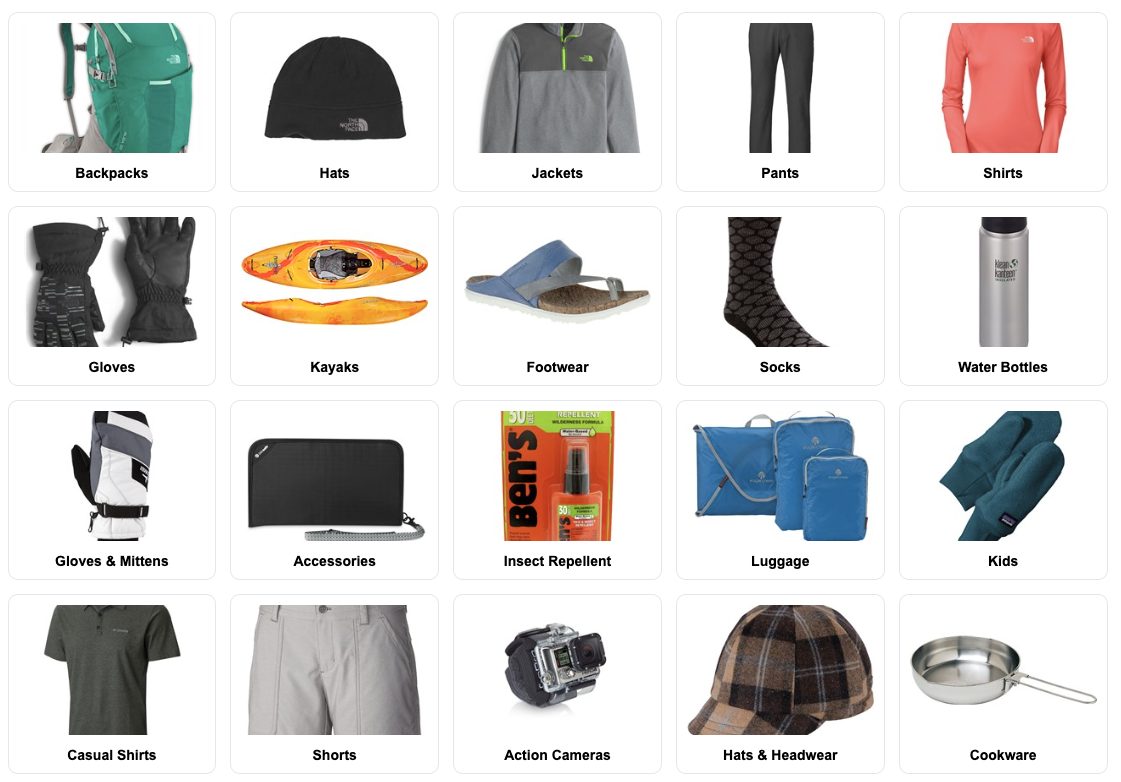
These visual facets can also be presented on the top of the page even before the rest of the products are presented:
Configuration
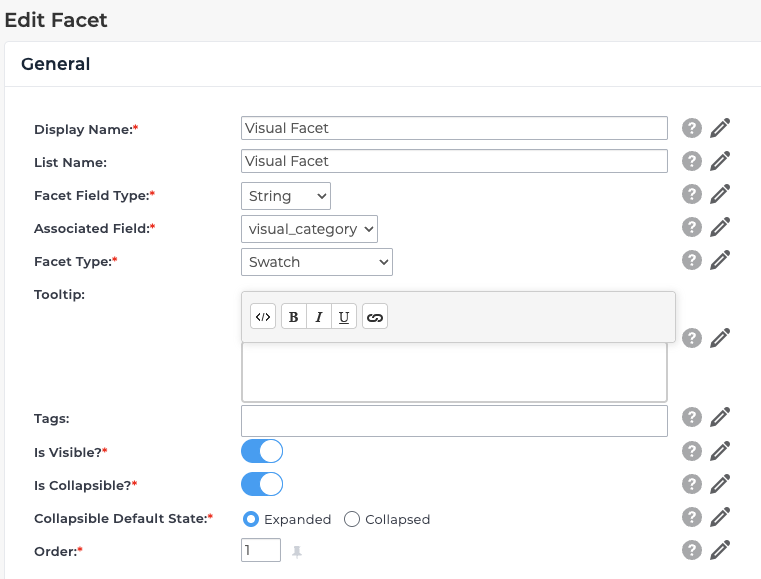
There is a facet type called "swatch" which turns on the support for a visual option:
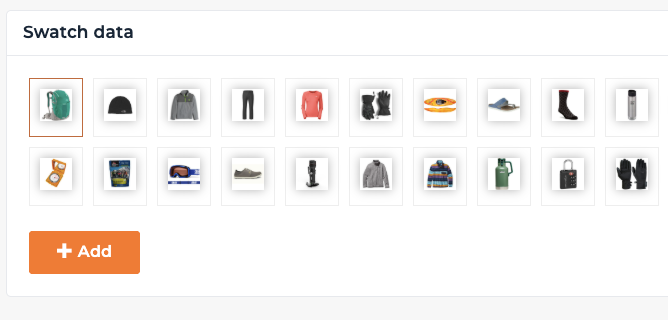
You'll see that you can add images at the bottom of this page:
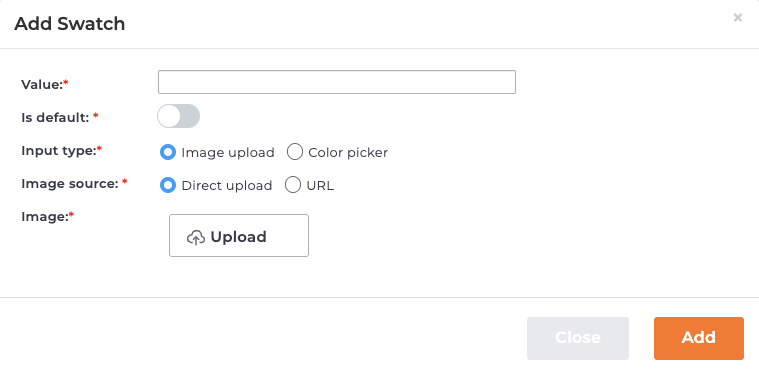
The images are listed within the facet:
| Config Option | Description |
|---|---|
| Value | This is critical - it is the value that will be passed in the search request. For example if the image is a Jacket to represent a facet value for Jacket, the value would be "Jacket." Note that by default, Rapid UI expects that each value in your indexed data has a visual representation, otherwise it will not know what to use visually for the facet value. |
| Is default | One of visual facets must be set to "Is default" - it does not impact the initial results. |
| Input type | This is either an image or a hexadecimal value which can be entered or picked from a color picker |
| Image source | If the input type is Image upload then you can either upload it and and HawkSearch will host the image or you can enter the URL to the image. |
| Image | This is the option to upload the image if you can not host it and provide a URL. |
Updated 8 months ago
Did this page help you?