

Banners on Autocomplete
Overview
Banners on Autocomplete extends the existing merchandising banner system to work inside the autocomplete (type-ahead) experience, not just on full Search Results Pages (SRPs). As a user begins typing in the search box, the autocomplete drop down can now surface a targeted promotional banner alongside its keyword and product suggestions , without waiting for a full search to complete.
A banner is selected based on the rules configured for that campaign. For example, a campaign could be set up so that a gaming-deals banner appears whenever a user’s typed keyword starts with “gam”. Because this happens at the autocomplete stage, the promotion reaches users earlier in their search journey, at the moment of intent rather than after results load.
The feature is available on OpenSearch (OS) engine instances only. It is not supported on Lucene engines, and on those instances the autocomplete response is unchanged, no Merchandising object is included.
Key Capabilities
- Display a single promotional banner inside the autocomplete drop down, triggered by keyword rules configured in the Workbench.
- Target campaigns specifically to Autocomplete, to Search, or to both, using a new Target field on the Campaigns page.
Setting Up Autocomplete Banners
Step 1: Create or edit a campaign in Workbench
Navigate to Settings → Campaigns in the Workbench. Open an existing campaign or create a new one. Each campaign must have at least one trigger rule defined, this is what determines when the banner fires during autocomplete.
For more information regarding campaigns, please see the following link: Campaigns.
Step 2: Set the Target
Each campaign now includes a Target section with two radio switches underneath to toggle where content will appear.
| Target Value | Where the banner appears |
|---|---|
| Search | Full search results pages only (SRP). This is the default for all existing banners. |
| Autocomplete | Autocomplete dropdown only. The banner will not appear on SRPs. |
| Search & Autocomplete | Both surfaces. The banner appears in autocomplete and on SRPs. |
Backward compatibility: If a campaign has no Target selected (all banners created before this feature was introduced), it automatically defaults to Search. You do not need to update existing campaigns unless you want them to appear in autocomplete.
Step 3: Configure trigger rules
Trigger rules define when a banner fires. For autocomplete, keyword-prefix rules are the most effective approach. For example, configuring a trigger so the keyword starts with “gam” causes the banner to appear any time a user types those letters into the search box, before they finish their full query.
Multiple banners can be assigned to the same trigger. When more than one banner is eligible, the system returns one at random. This is by design. Use the Trigger object in preview mode to inspect which campaign fired and verify your rules are working correctly.
API Reference
Autocomplete Endpoint
Autocomplete banner support is available on both the v2 and v3 autocomplete endpoints:
POST https://{your-instance}/api/v2/autocomplete
POST https://{your-instance}/api/v3/autocomplete
Sample Request
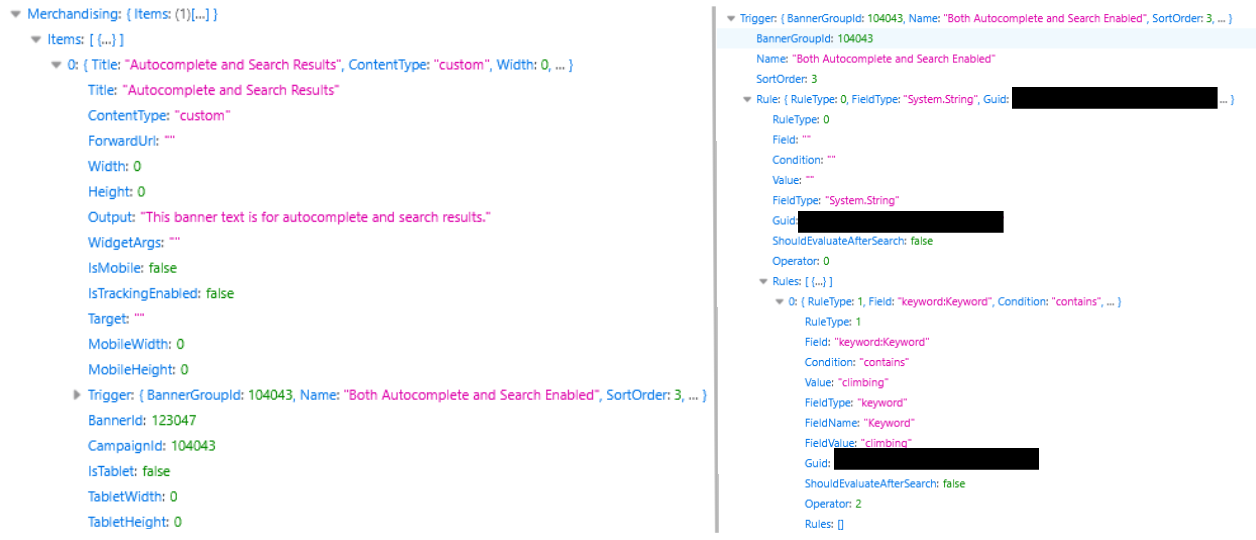
The Merchandising Object returned by the API request | The Trigger attached to the Merchandising object returned.
When IsInPreview is set to true, each Merchandising item includes a Trigger object that explains why the banner was selected - which campaign matched, which rule was satisfied, and related context. This is intended for content editors and QA to verify campaign setup.
On live requests (IsInPreview is false or omitted), the Trigger property is hidden entirely. This keeps the autocomplete response lightweight for production traffic.
Merchandising Object
When a banner is matched, the autocomplete response includes a Merchandising object. This has the same shape as the Merchandising object returned by the Search API, with two differences:
- Autocomplete always returns exactly one banner. Search can return multiple banners (one per zone). Because of this, one banner from the relevant campaign is chosen randomly.
- The Zone attribute is absent from autocomplete Merchandising items. Search includes zone placement (left, top, right, bottom, etc.). Since autocomplete only has a singular zone, this attribute is not needed.
Behavior Details
Banner Selection Logic
When an autocomplete request is received, the merchandising service evaluates all campaigns whose Target includes Autocomplete (or Search & Autocomplete). It filters them against the active trigger rules given the current keyword, then randomly selects one eligible banner to return.
The system iterates through banner groups in priority order and stops as soon as it finds one group that yields a valid result. Only one banner is ever returned per autocomplete request, with the banner returned being randomly selected from the campaign based on weight. If no campaign matches the keyword or no eligible banner exists, the Merchandising object is either absent from the response or contains an empty Items array.
Engine Compatibility
Autocomplete banners are supported on OpenSearch (OS) engines only.
On Lucene engine instances, the feature is transparent - the autocomplete response is returned exactly as before, and no Merchandising object is included. No changes are needed to Lucene configurations.
Updated 5 months ago